Website visitors leave without ever identifying themselves.
Anonymous Visitors
98% of your website visitors leave without ever sharing their contact info. They browse, they read, they leave. You’ll never know who they were or what they wanted.
Siloed Teams
Marketing generates traffic, support answers questions, but they never talk. A visitor asks your chatbot about pricing and nobody in sales ever finds out.
Intrusive Forms
Pop-ups and gated content feel aggressive. Visitors bounce before filling out your lead form. The ones who do convert feel annoyed, not engaged.
Lost Opportunities
Someone spent 10 minutes chatting with your AI about your product. They were clearly interested. But they left without an email, and you have no way to follow up.
How It Works
Get started in
minutes
1
Configure lead capture
Choose when to ask for contact info: at the start, after value is provided, or when they request something specific.
2
Offer value in exchange
Incentivize with discounts, guides, demos, or exclusive content in exchange for their email.
3
AI collects naturally
Your AI asks for information at the right moment, as part of the conversation flow.
4
Sync to your tools
Leads automatically flow to your CRM, email tool, or marketing automation platform.
Benefits
What you get
In-Chat Collection
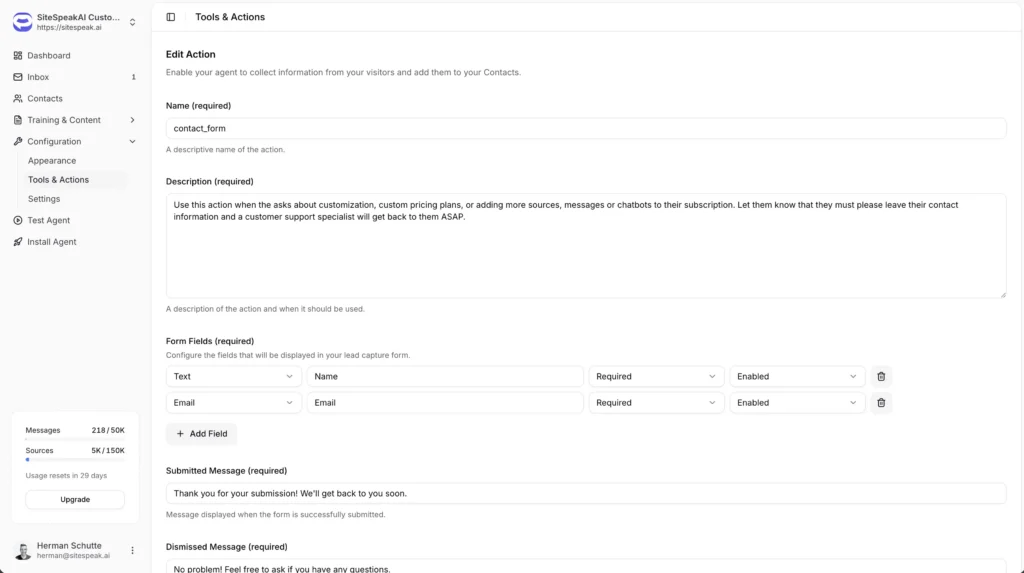
Collect emails and phone numbers during natural conversation, not through intrusive pop-ups.
CRM Integration
Leads sync automatically to HubSpot, Salesforce, or your preferred CRM via Zapier.
Custom Incentives
Offer discounts, free trials, or exclusive content to boost conversion rates.
Qualify Leads
Ask qualifying questions to score leads and prioritize follow-up.
Powerful yet simple to use
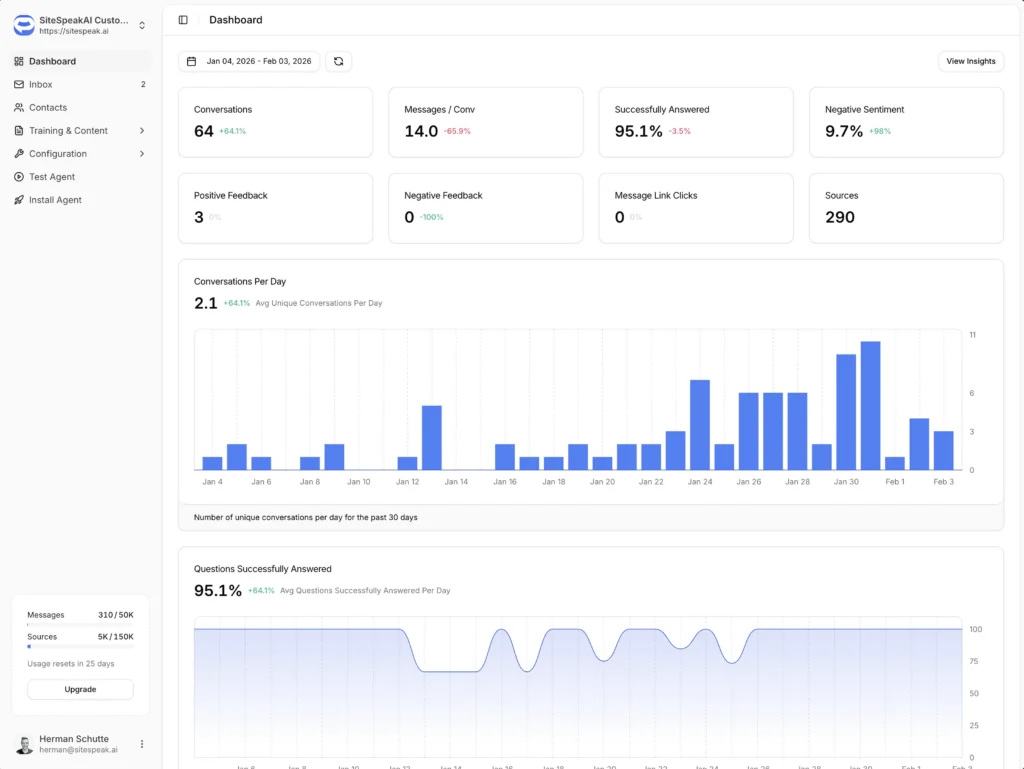
Everything you need is just a few clicks away. Our intuitive interface makes it easy to configure, customize, and deploy your AI assistant without any technical expertise.
Intuitive dashboard with real-time updates
No coding required to get started
Live preview as you customize
Walter Goodman
Online Marketing Manager
The platform is very intuitive to set up and use. I was able to train the chatbot directly from our site maps with ease.
Use Cases
Who benefits most
E-commerce
Offer a discount code in exchange for email signup. Recover abandoned browsers.
SaaS
Capture leads from pricing questions. Offer demos to highly engaged visitors.
Agencies
Qualify leads with questions about budget and timeline before passing to sales.
Frequently asked questions
Everything you need to know about AI Chatbot. Can’t find what you’re looking for? Start a free trial and see it in action.
When does the AI ask for contact information?
You control this. Options include: at the start of conversation, after providing value, when they ask about pricing, or when they request a demo or callback.
Where do captured leads go?
Leads are stored in your AI Chatbot dashboard. You can also sync them automatically to HubSpot, Mailchimp, or any app via Zapier.
Can I customize what information is collected?
Yes. You can collect email, phone, company name, and custom fields. You can also add qualifying questions.
Will asking for info hurt the user experience?
When done right, no. Our AI asks naturally at appropriate moments. You can always offer value (discount, help, content) in exchange.
Explore More
Related features
Inbox & Live Chat
Your AI handles 90% of questions automatically. For the 10% that...