
- Installing Your Chatbot
- HTML Website
Choose an available topic from the sidebar. More documentation is coming soon.
Choose an available topic from the sidebar. More documentation is coming soon.
Installing Your Chatbot
How to add an AI chatbot to any HTML website
How to add your custom trained AI chatbot to any HTML website.
You want to embed your custom trained AI support agent to your HTML website. Here’s how to add an AI support agent to any HTML website with AI Chatbot.
Please Note! For this process you need to have access to your website’s source code.
Add your AI support agent to your HTML website
In AI Chatbot
Select your chatbot from the dropdown menu at the top, click on the Install Agent section in the sidebar, then click on the Copy Code button to copy your code snippet.
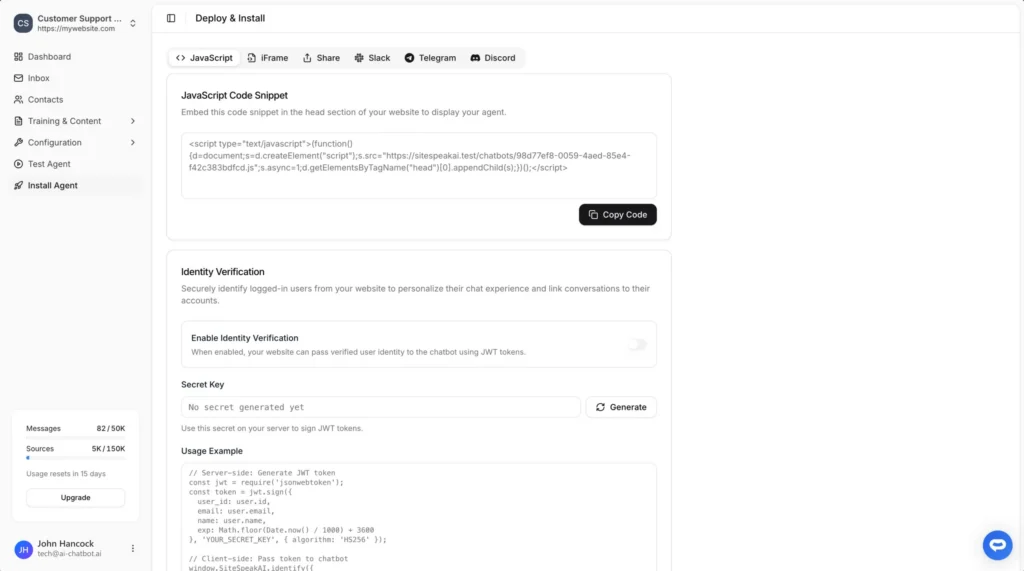
In your website
1. Adding the code
Using a simple editor e.g. Notepad (Windows), TextEdit (Mac), or a code editor like VS Code, add the code snippet to your the website HTML code in the html or body section of your HTML file.
<!-- AI Chatbot - Add ChatGPT to your website -->
<script type="text/javascript">(function()	{d=document;s=d.createElement("script");s.src="https://sitespeak.ai/chatbots/########-####-####-####-############.js";s.async=1;d.getElementsByTagName("head")[0].appendChild(s);})();</script>
<!-- / AI Chatbot -->
2. Please note
- Caching: Browsers often cache (save) files. If you make changes and they don’t appear, on Windows you can press F5 (or Shift+F5) or clear your browser’s cache (usually in your browser settings).
- Code Editors: Using a code editor like VS Code will make writing and managing your code much easier. They provide syntax highlighting, error checking, and other helpful features.
Ready to automate your customer service with AI?
Join over 1000+ businesses, websites and startups automating their customer service and other tasks with a custom trained AI agent.