
- Managing Your Chatbot
- pdfs
Choose an available topic from the sidebar. More documentation is coming soon.
Choose an available topic from the sidebar. More documentation is coming soon.
Training Your Chatbot
Train Your Chatbot on PDFs and Files
Upload PDFs, CSVs, text files, and audio files to train your chatbot on documents, manuals, and other content.
Upload documents to train your chatbot on product manuals, user guides, policies, FAQs, and any other content you have in file format. AI Chatbot extracts the content from your files and uses it to answer visitor questions.
How to upload PDFs to your chatbot
1
Go to Training & Content
In your chatbot dashboard, click Training & Content in the sidebar.
2
Select Sources
Click on Sources.
3
Click Add Sources
Click the + Add Sources button.
4
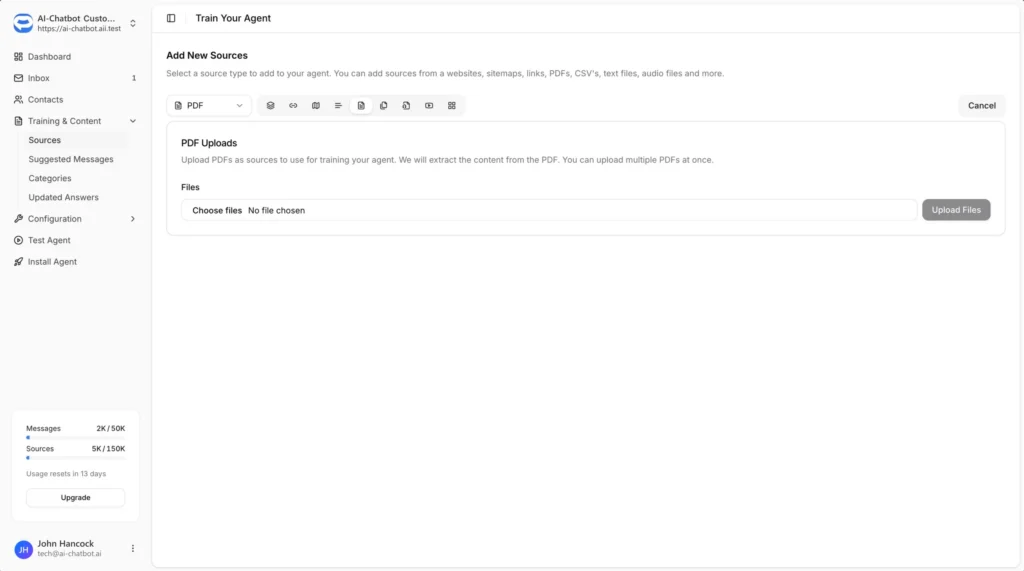
Select PDF from the dropdown
Select PDF from the source type dropdown.
5
Choose your files
Click Choose files and select the files you want to upload. You can upload multiple files at once.
6
Upload Files
Click the Upload Files button to upload and start training on your documents.
Supported file types when you upload PDFs to your chatbot
From the PDF source type, you can upload:
- PDF files (.pdf)
- CSV files (.csv)
- Text files (.txt)
Best practices for the upload PDFs to your chatbot
Ensure Text is Extractable
- PDFs should contain actual text, not just scanned images
- Check that you can copy and paste text from your PDF before uploading
- Scanned documents may not extract properly if they haven’t been OCR processed
Use Descriptive File Names
- Name your files clearly so you can identify them in your Sources list
- This makes it easier to manage and update content later
Keep Content Current
- Re-upload files when the content changes
- Delete outdated versions from your Sources to avoid confusion