
- Website Builders
- Framer
Website Builders
How to add an AI chatbot to Framer
How to add your custom trained AI chatbot to your Framer website.
You want to embed your custom trained AI support agent in your Framer website page. Here’s how to add an AI support agent to Framer with AI Chatbot.
Framer is a website builder that’s different from traditional drag-and-drop platforms like Wix or Squarespace. It’s essentially a design tool for websites. Instead of just picking pre-made templates, you build your website using code-like components – think of them as building blocks you can customize with CSS (the language that controls how websites look). It’s incredibly powerful for creating interactive and visually stunning websites, especially those with complex animations, micro-interactions, and unique layouts.
Add your AI support agent to your Framer website
In AI Chatbot
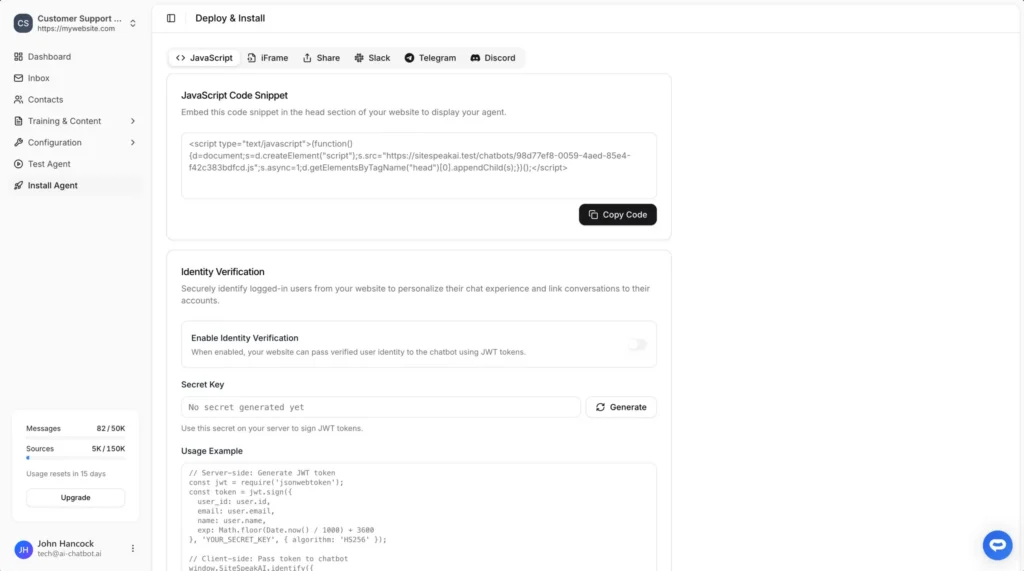
Select your chatbot from the dropdown menu at the top, click on the Install Agent section in the sidebar, then click on the Copy Code button to copy your code snippet.
In Framer
- Log into your Framer account and on the dashboard, select the project to edit
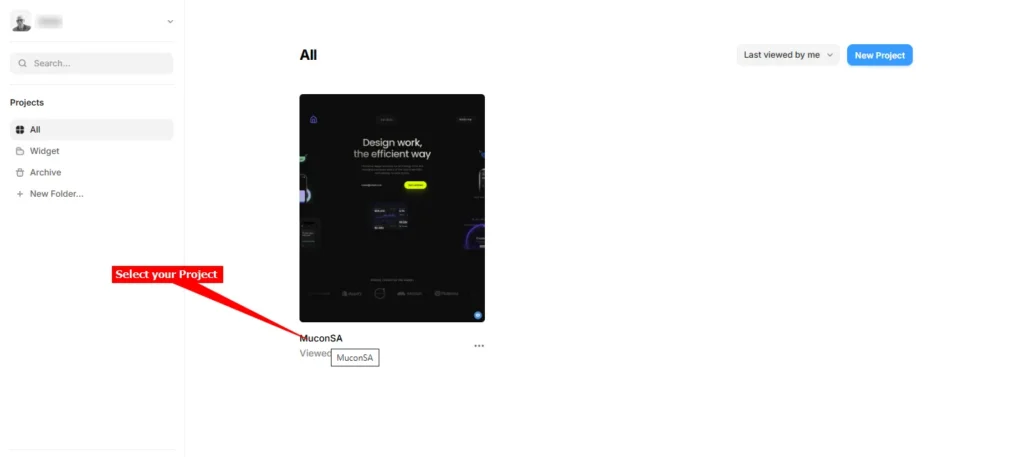
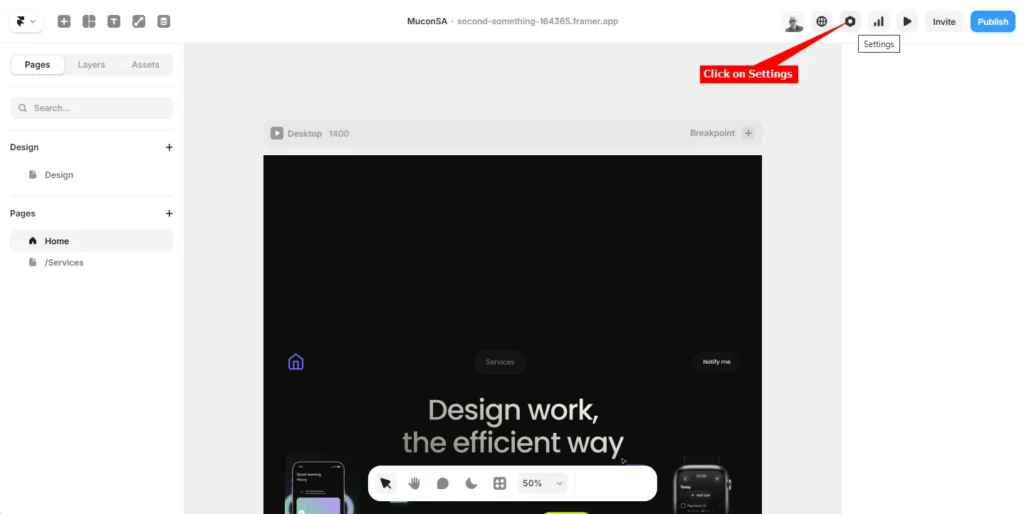
- Click on Settings to open the Site Settings
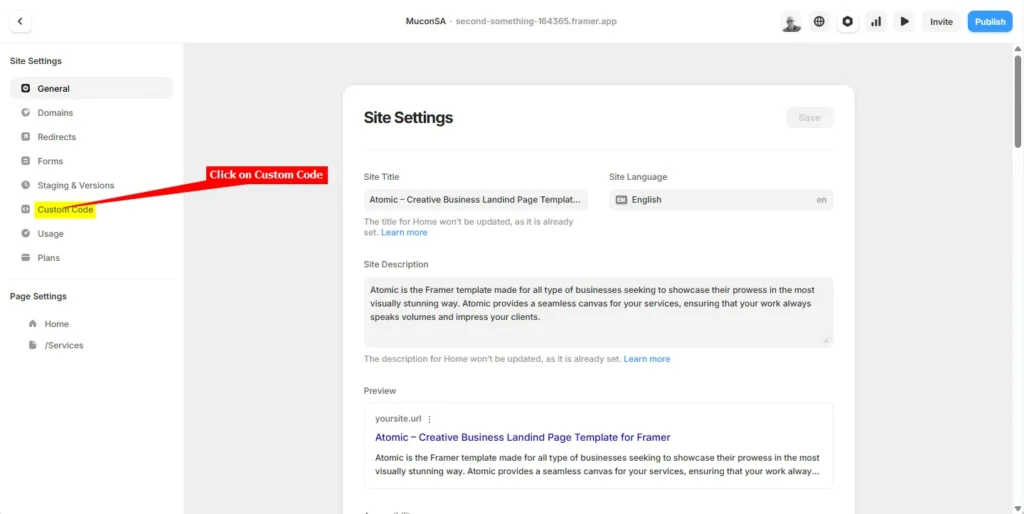
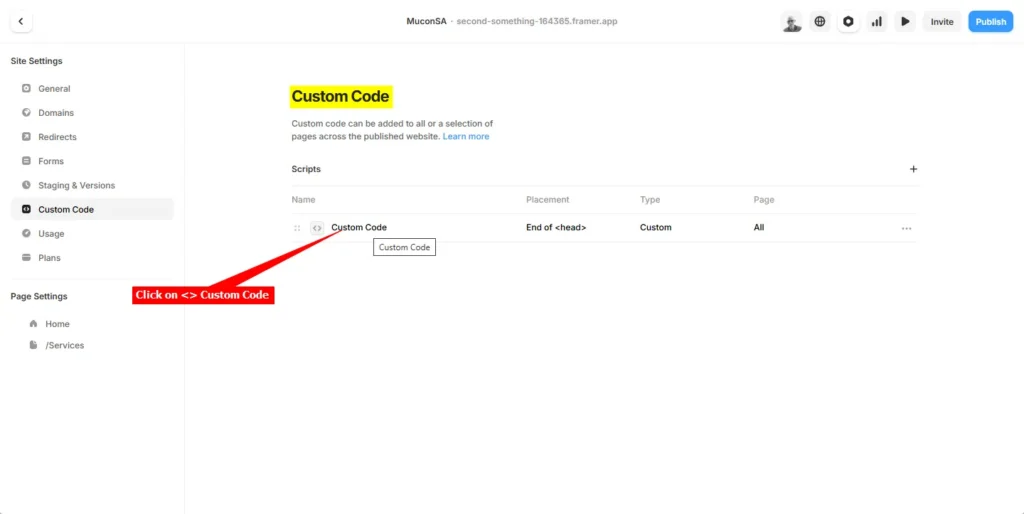
- Under Site Settings, on the left side bar, click on Custom Code
- On the Custom Code page, click on the
<>Custom Code item to open the Script Editor
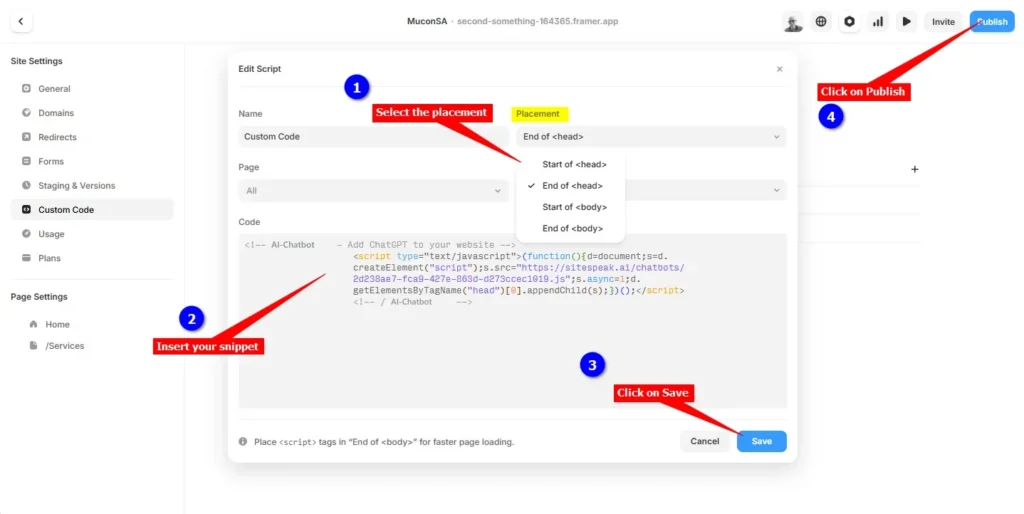
- Insert your snippet. You have a few options where to insert your snippet, i.e.
- Start of
- End of
- Start of
- End of
- Your AI support agent button will now be displayed on your Framer website page

- If you click on the button it will display the AI support agent dialogue
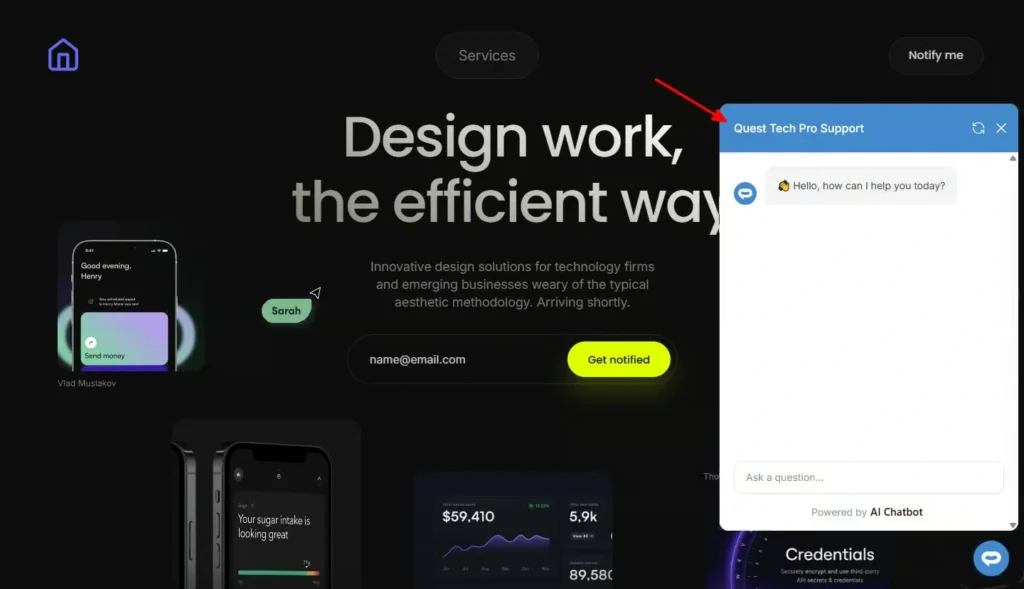
Your AI support agent has now been added to your Framer website and your visitors/customers can start interacting with it!
Ready to automate your customer service with AI?
Join over 1000+ businesses, websites and startups automating their customer service and other tasks with a custom trained AI agent.