How to add an AI chatbot to Brizy Cloud
You want to embed your custom trained AI support agent in your Brizy Cloud website page. Here’s how to add an AI support agent to Brizy Cloud with AI Chatbot.
Brizy Cloud is a drag-and-drop website builder that’s designed to be super easy to use, even if you have no coding experience. Think of it like building with LEGOs – you grab pre-made blocks (called “blocks”) like text boxes, images, buttons, and more, and simply drag and drop them onto your page to create your website.
Website URL: Brizy Cloud
Add your AI support agent to your Brizy Cloud website
In AI Chatbot
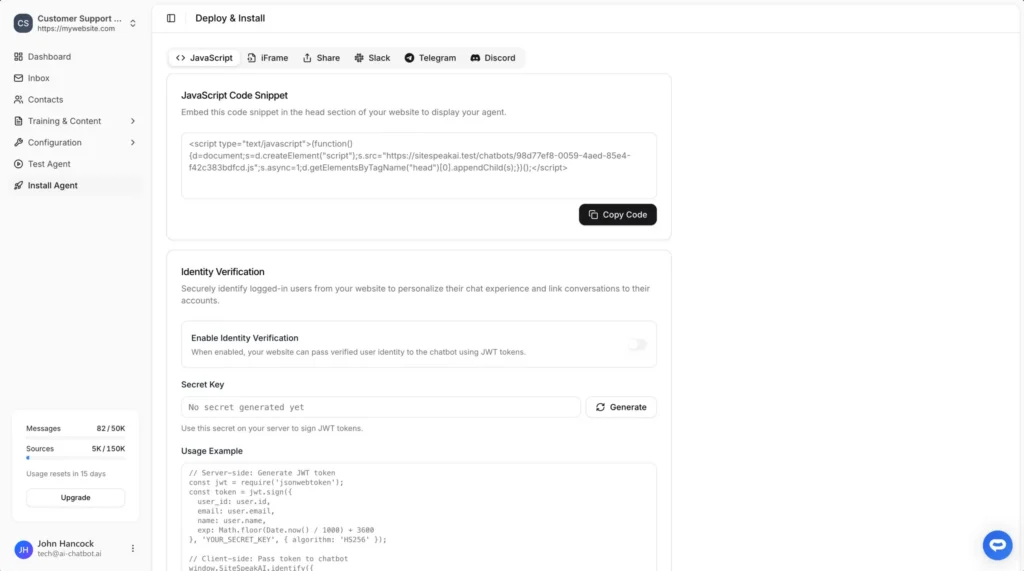
Select your chatbot from the dropdown menu at the top, click on the Install Agent section in the sidebar, then click on the Copy Code button to copy your code snippet.
In Brizy Cloud
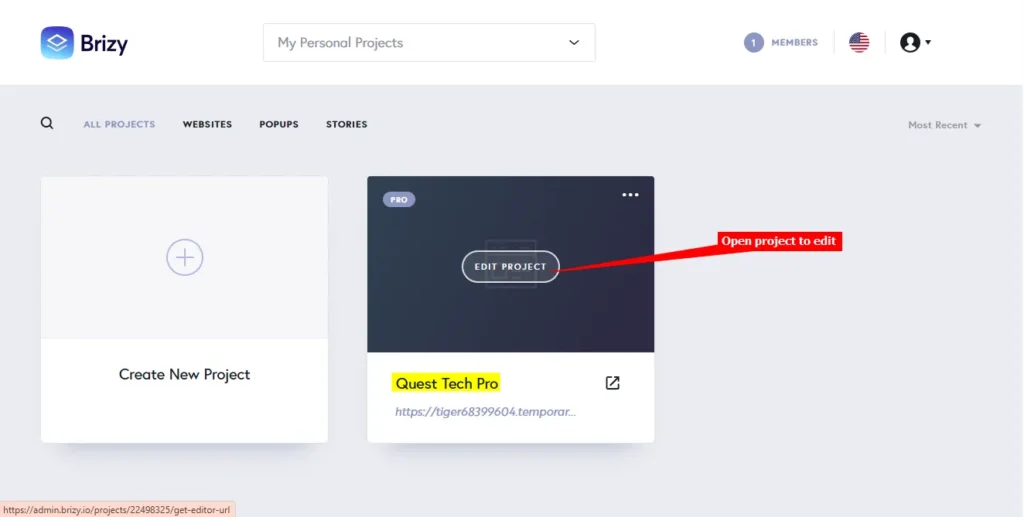
- Log into your Brizy Cloud account and on the dashboard, select the project you want to add your AI support agent to
- Select the CMS item on the left sidebar
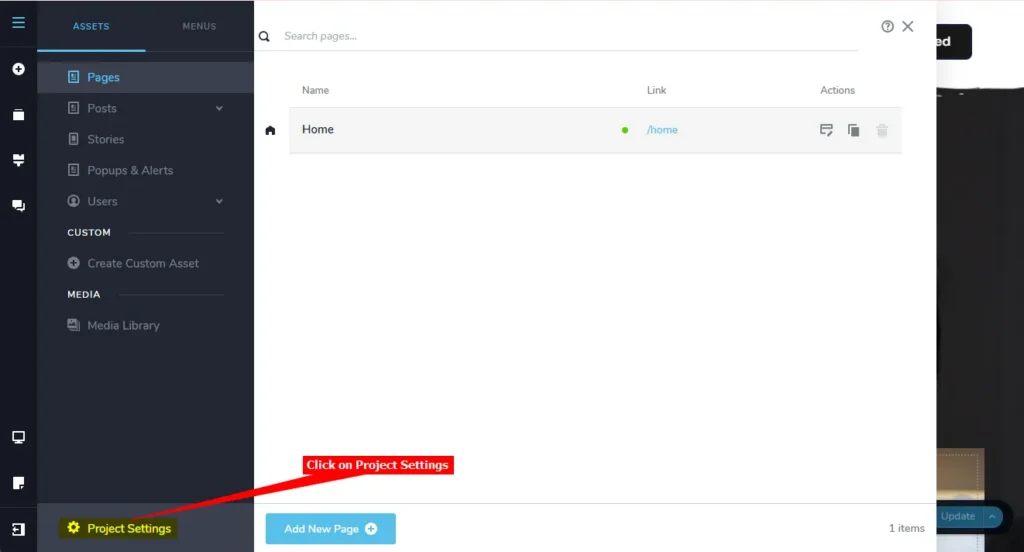
- Click on Project Settings
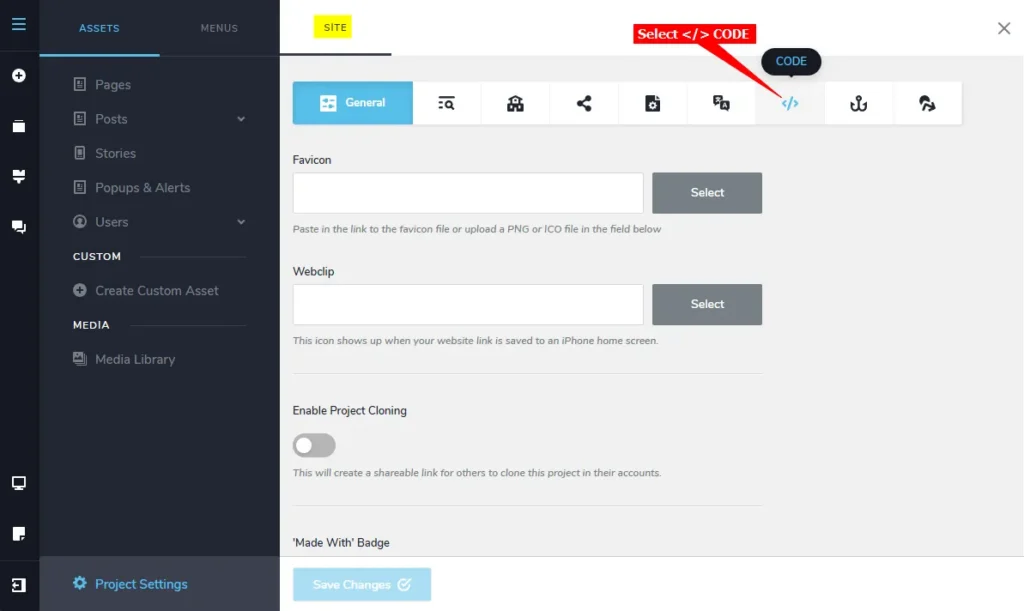
- Select the </> CODE option tab
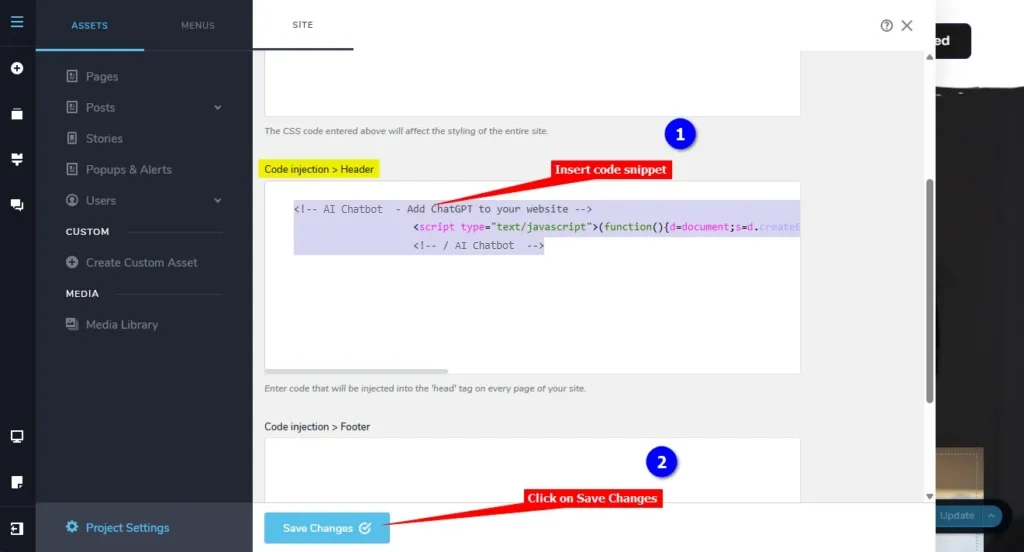
- Insert your AI support agent snippet code under Code injection > Header and click on Save Changes to save your code
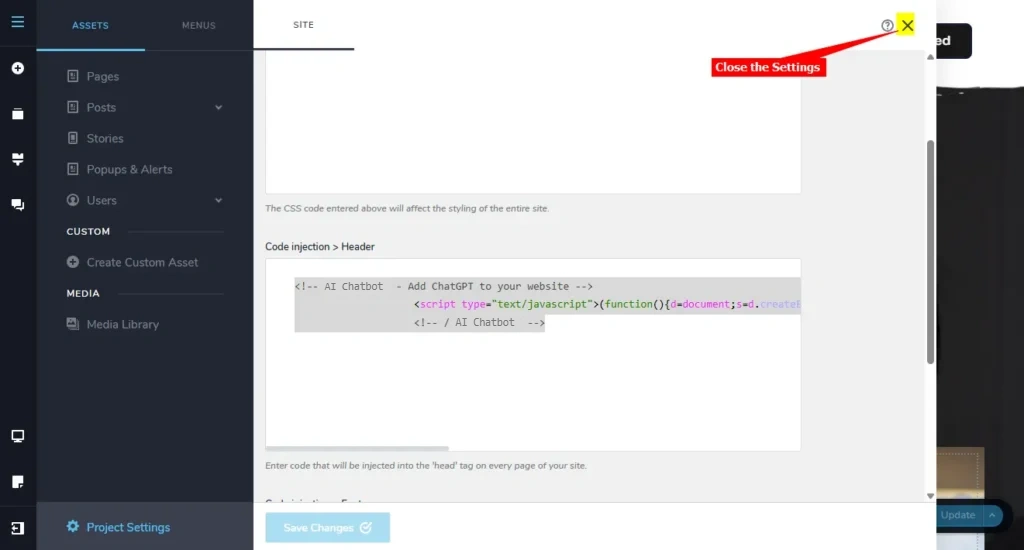
- Close Settings to return to your website
- Click on Preview to preview your webpage
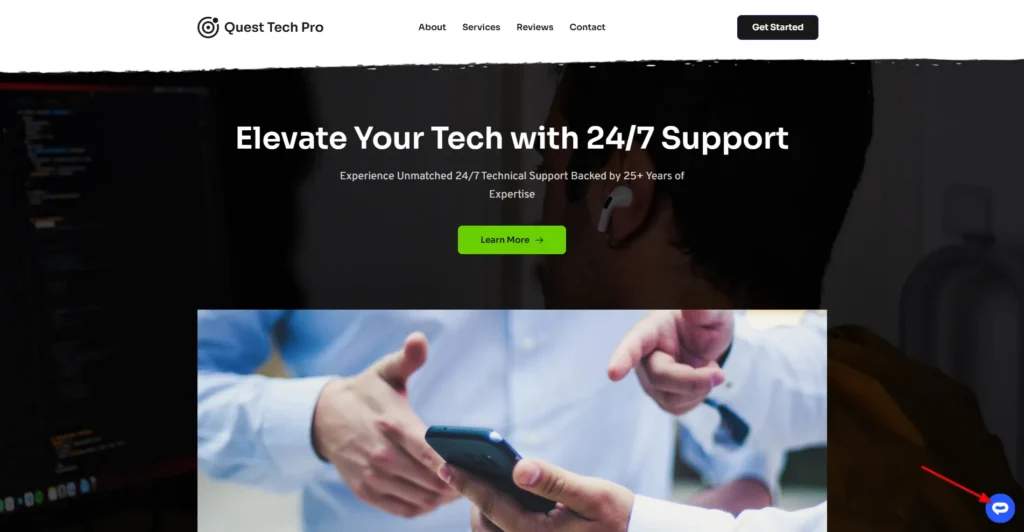
- Your AI support agent button will now be displayed on your Brizy Cloud website page
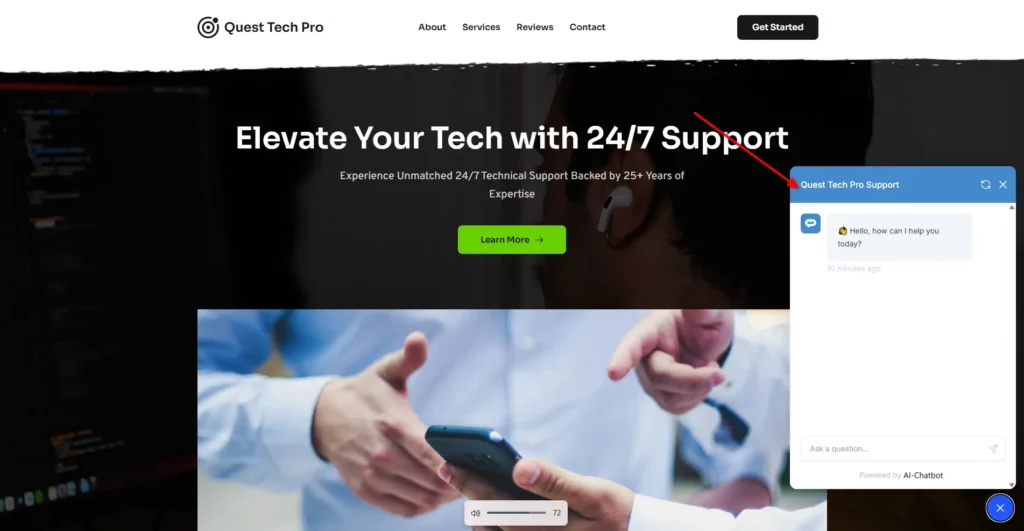
- If you click on the button it will display the AI support agent dialogue
Your AI support agent has now been added to your Brizy Cloud website and your visitors/customers can start interacting with it!
Join over 1000+ businesses, websites and startups automating their customer service and other tasks with a custom trained AI agent.