
- Installing Your Chatbot
- LMS Platforms – Moodle
LMS Platforms
How to add an AI chatbot to Moodle
How to add your custom trained AI chatbot to your Moodle website.
You want to embed your custom trained AI support agent in your Moodle website page. Here’s how to add an AI support agent to Moodle with AI Chatbot.
Moodle (pronounced “mood-ull”) is a free and open-source Online Learning Platform or Learning Management System. Think of it like a virtual classroom. It’s used by schools, universities, businesses, and even individuals to create and deliver online courses, training programs, and learning materials.
- Upload materials: Share documents, videos, presentations, etc.
- Create assignments: Set quizzes, tests, and projects.
- Facilitate discussions: Provide forums for students to interact.
- Track progress: Monitor student performance.
It’s very customizable and can be adapted to fit a wide range of learning needs.
Add your AI support agent to your Moodle website
In AI Chatbot
Select your chatbot from the dropdown menu at the top, click on the Install Agent section in the sidebar, then click on the Copy Code button to copy your code snippet.
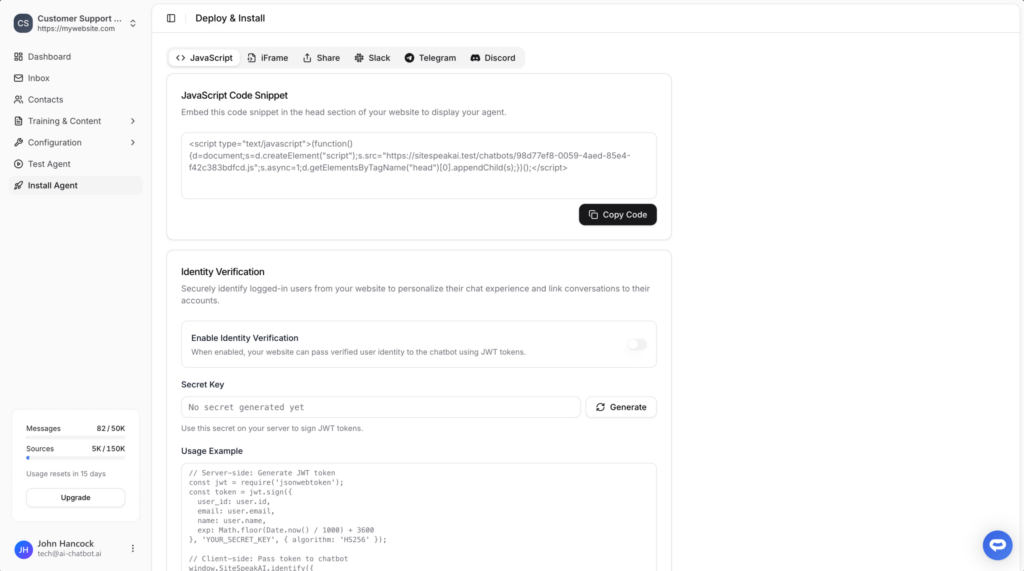
In Moodle
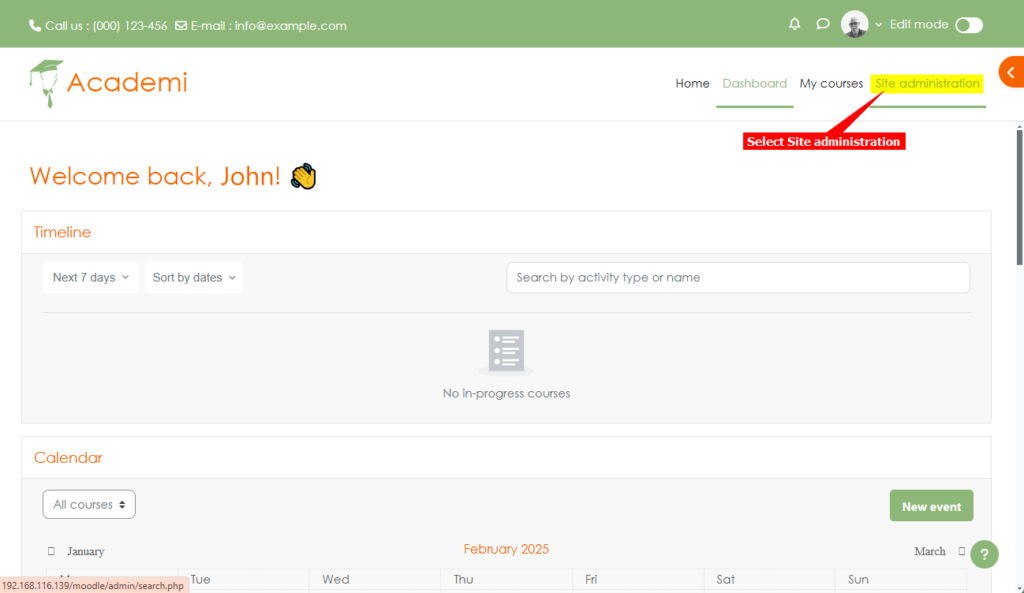
- Log into your Moodle admin account and select Site administration on the top menu
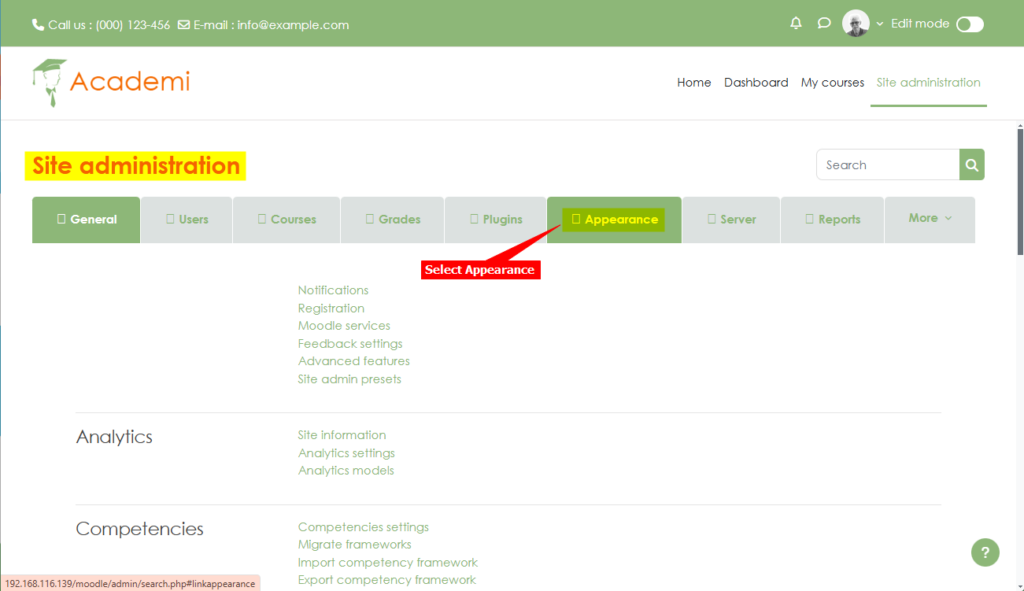
- Select Appearance under Site administration
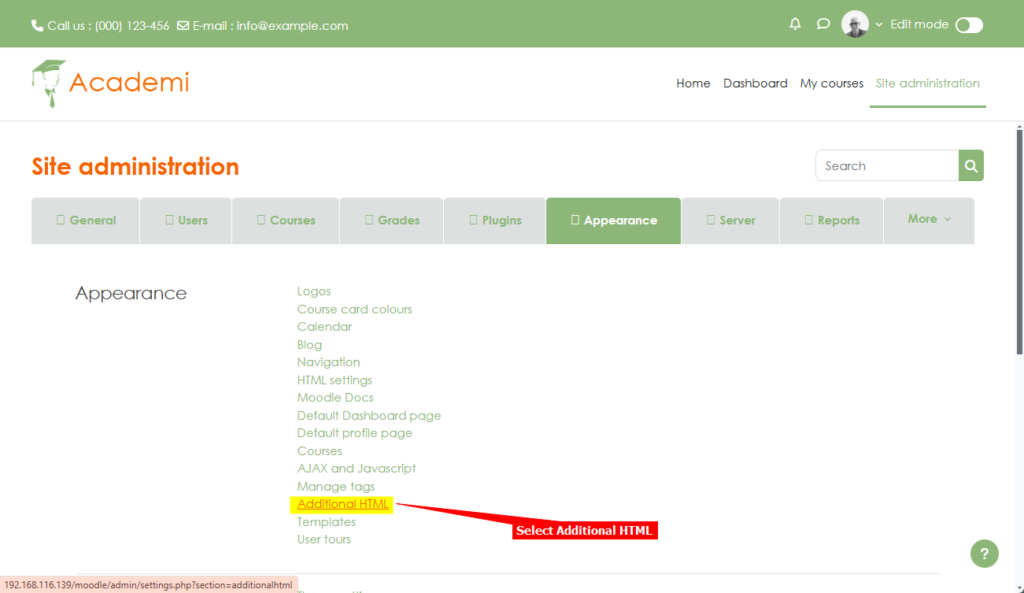
- Select Additional HTML under Appearance
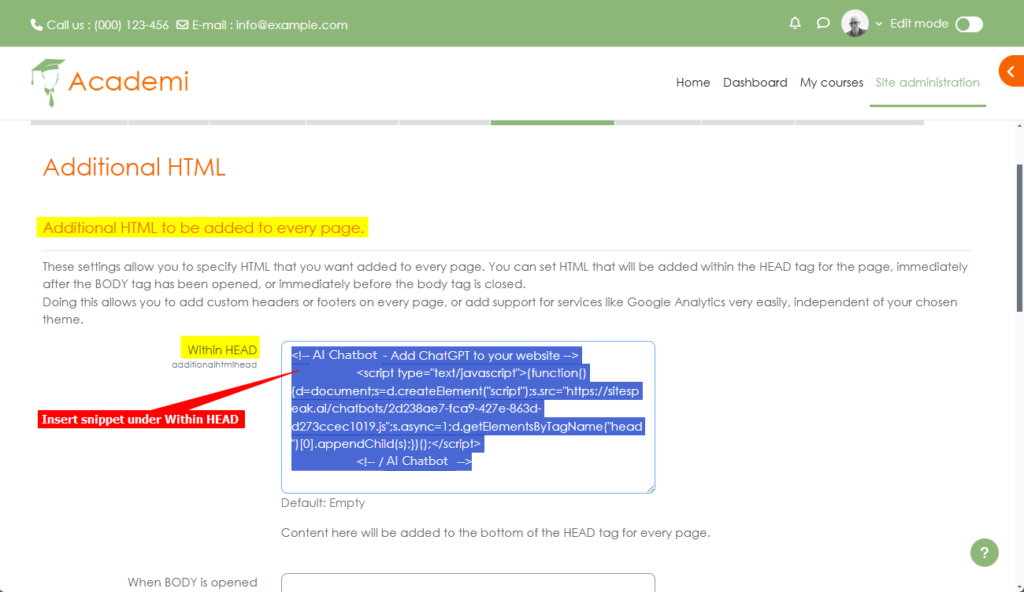
- Insert your AI support agent snippet under Within HEAD
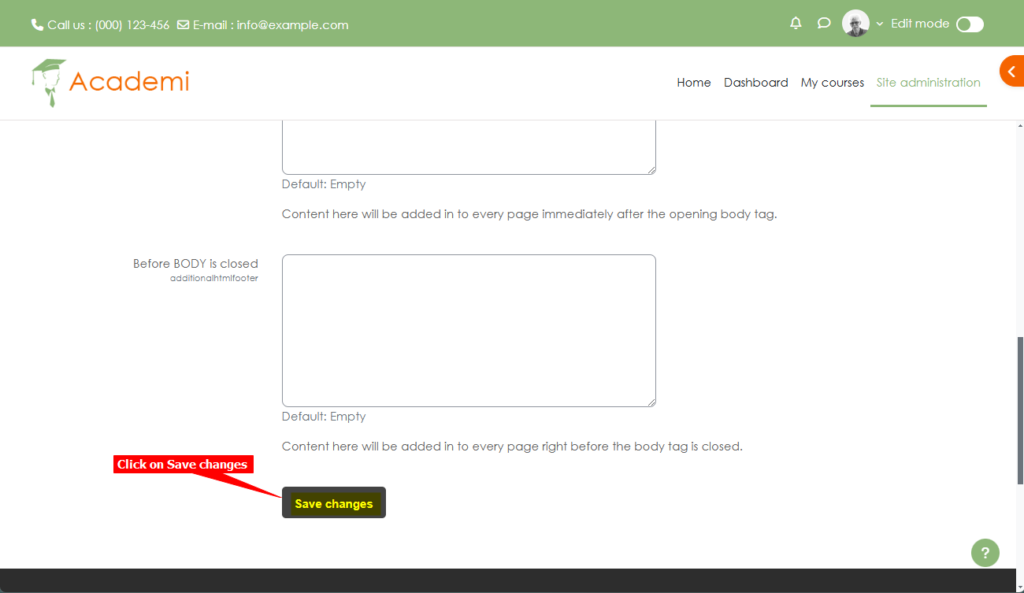
- Scroll down on the Additional HTML page and click on Save changes
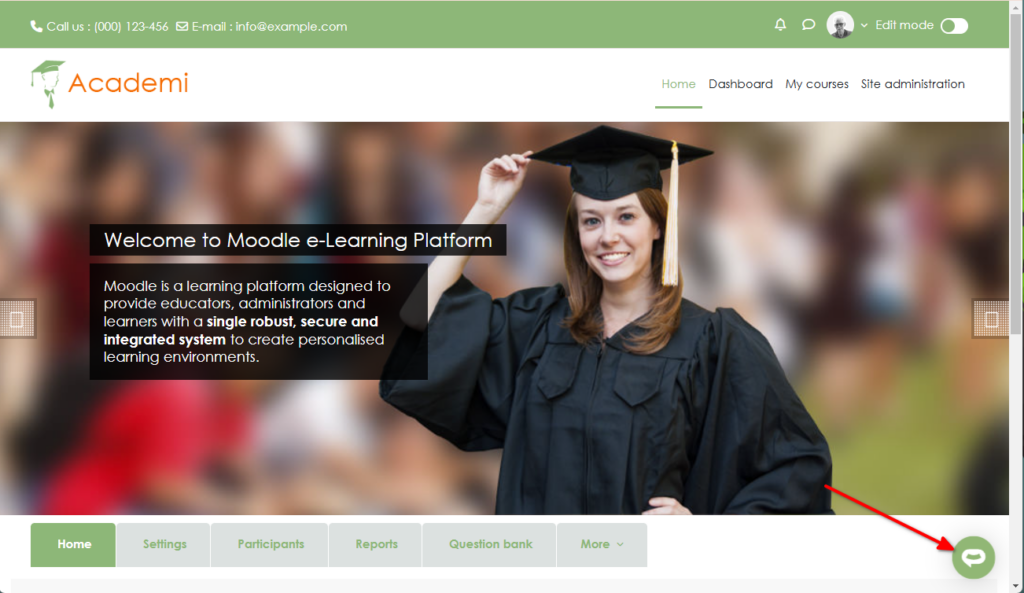
- Your AI support agent button will now be displayed on your Moodle website page
- If you click on the button it will display the AI support agent dialogue
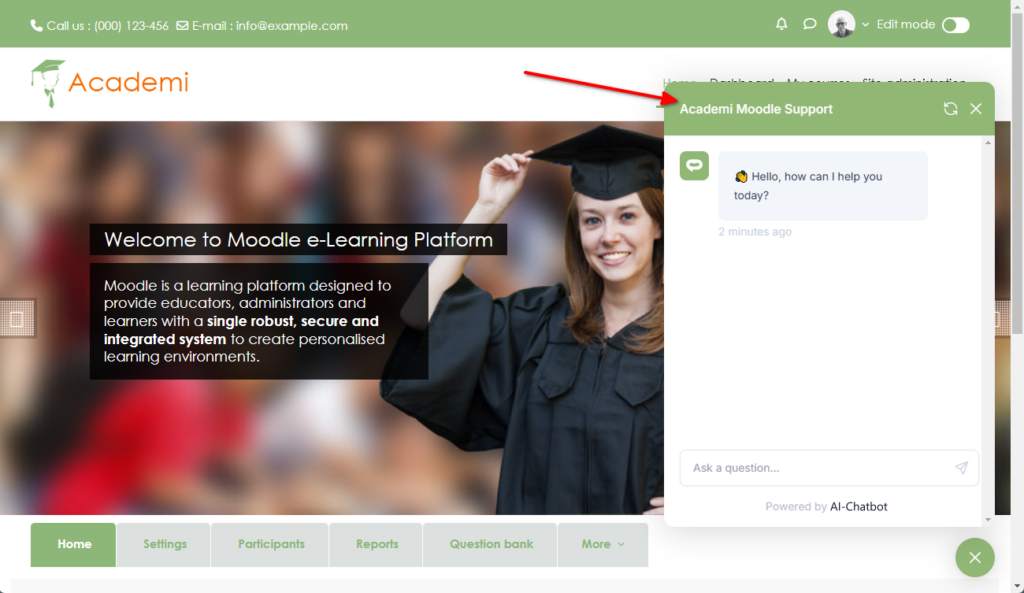
Your AI support agent has now been added to your Moodle website and your visitors/customers can start interacting with it!
Ready to automate your customer service with AI?
Join over 1000+ businesses, websites and startups automating their customer service and other tasks with a custom trained AI agent.