
- Website Builders
- Plasmic
Website Builders
How to add an AI chatbot to Wix
How to add your custom trained AI chatbot to your Wix website.
Wix is a cloud-based website builder that allows anyone to create a professional website without any coding knowledge. It operates on a drag-and-drop system, meaning users can visually piece together their web pages using text, images, videos, and various pre-built elements.
Add your AI support agent to your Wix website
In AI Chatbot
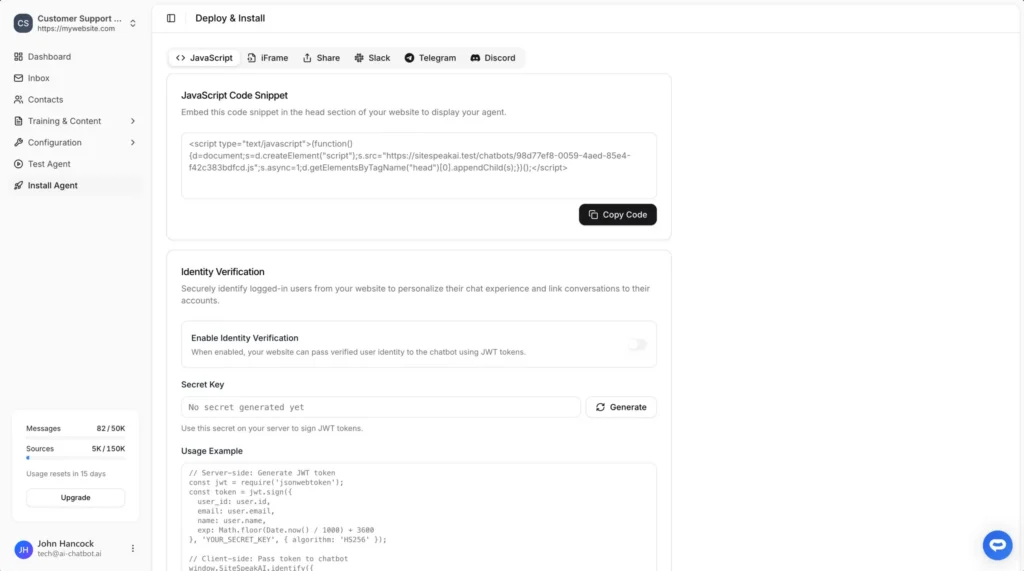
Select your chatbot from the dropdown menu at the top, click on the Install Agent section in the sidebar, then click on the Copy Code button to copy your code snippet.
In Wix
- In the Wix Editor, click Add Elements (the plus icon)
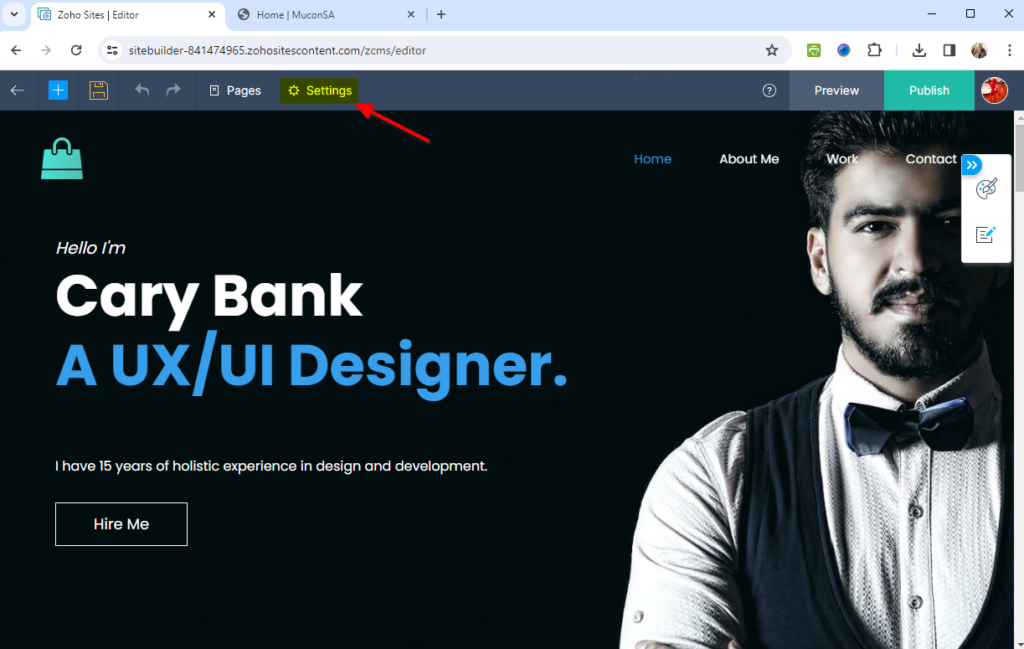
- Select Embed Code, then choose Custom Code under Marketing Tools
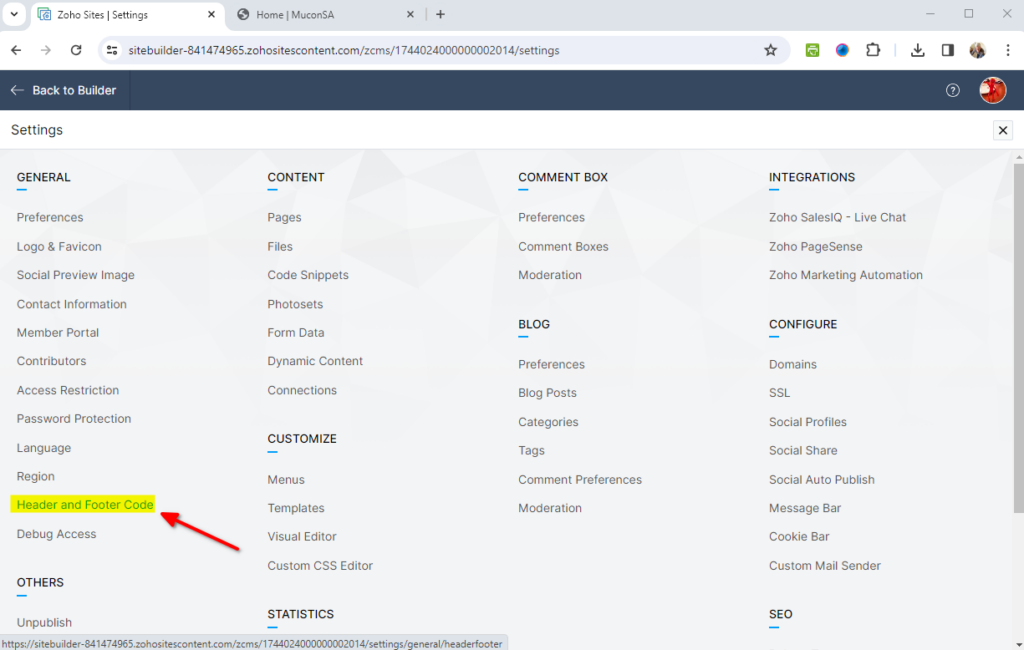
- Click Add Code in the Head section of the Custom Code dialog
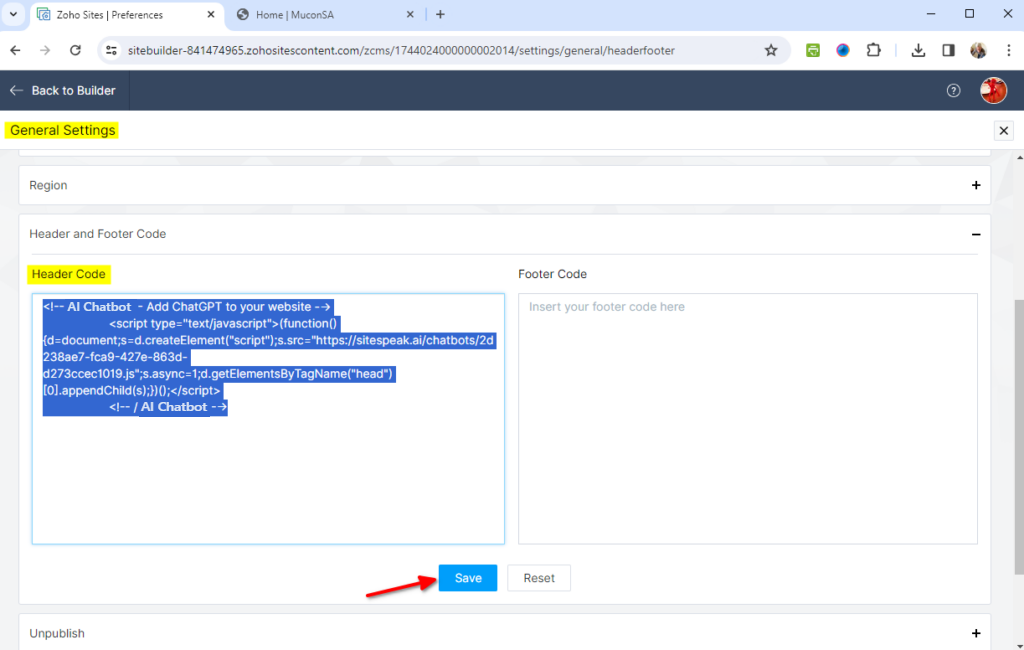
- Paste your AI support agent code snippet into the Add Custom Code modal
- Give it a name to identify it easily (here we gave it “MuconSA Customer Support” as the name for the purpose of this tutorial)
- Choose whether to display on All pages or a specific page
- Click Apply to save your changes
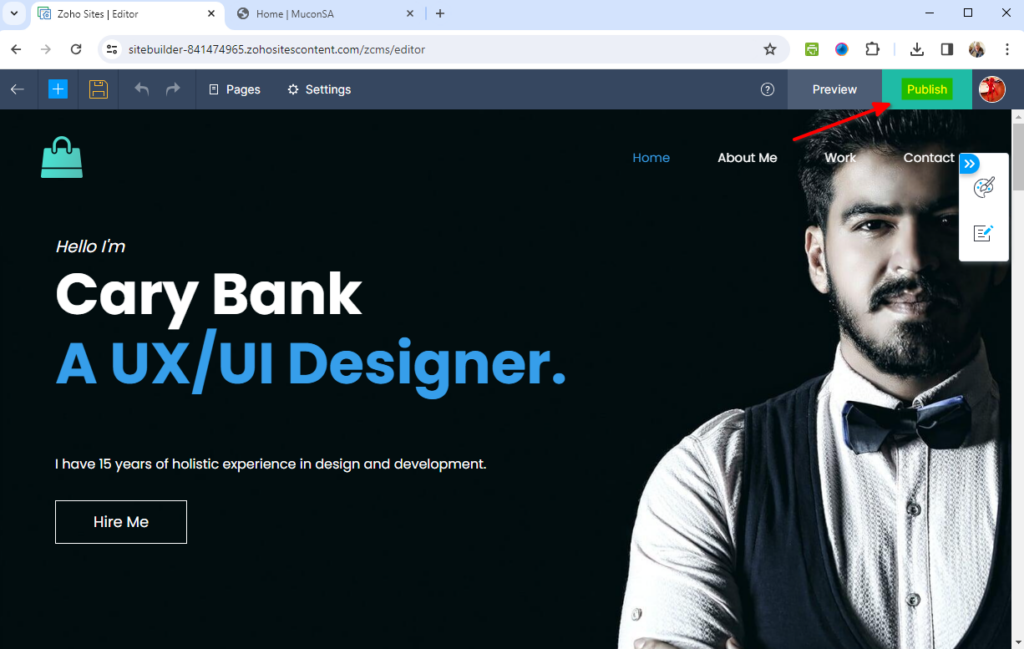
- Click on Publish to publish your changes to your live website
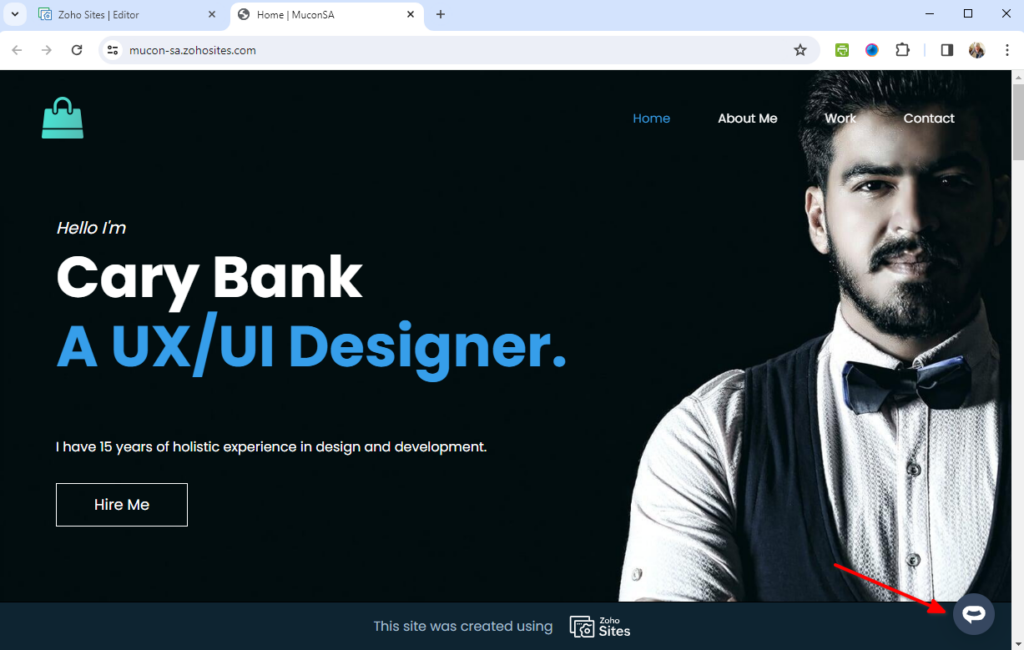
- Your AI support agent button will now appear on your live website
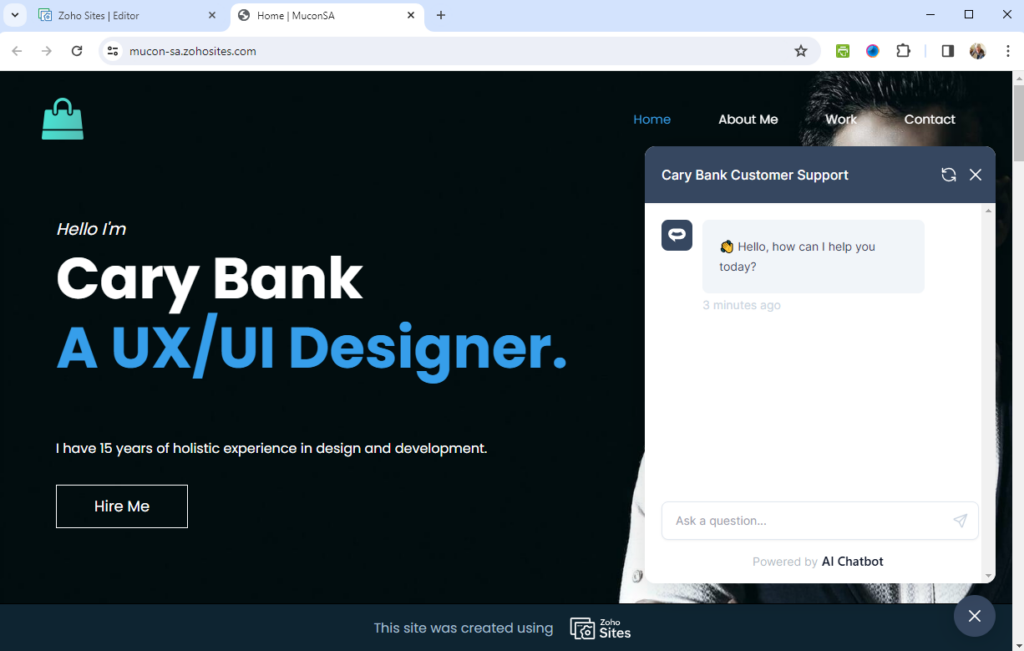
- Visitors can click the button to open the AI support agent dialogue and start asking questions
Alternative: Using an HTML embed
If you prefer to embed the AI support agent in a specific location on your page rather than as a floating widget:
- In the Wix Editor, click Add Elements > Embed Code > Embed HTML
- Drag the HTML widget to where you want the AI support agent to appear
- Click Enter Code and paste the iFrame embed code from AI Chatbot
- Resize the embed box as needed
- Publish your site
This method is useful if you want the AI support agent to appear inline within your page content rather than as a floating button.
Mobile responsiveness
The AI Chatbot support agent widget is fully responsive and works on all devices. On mobile, the chat button automatically adjusts its position to avoid interfering with navigation elements. You can customize the mobile position offset in your AI Chatbot dashboard if needed.
Troubleshooting
AI support agent not appearing after publishing? Clear your browser cache and reload the page. Wix may cache your site for performance.
Custom Code option not available? Make sure you have a Wix Premium plan. Custom code features are not available on free Wix sites.
Chatbot appears in wrong position? Adjust the position and offset settings in your AI Chatbot appearance settings. You can position the widget in any corner and set custom margins.
Preview not showing the chatbot? This is expected behavior. Wix’s preview mode doesn’t load custom code. You must publish your site to see the chatbot.
Ready to automate your customer service with AI?
Join over 1000+ businesses, websites and startups automating their customer service and other tasks with a custom trained AI agent.