Firecrawl: Search Action
Enable your AI chatbot to search the web using Firecrawl and optionally scrape full page content from search results.
The Firecrawl: Search action enables your AI support agent to search the web using Firecrawl and optionally scrape full page content from search results. This allows your chatbot to look up the latest and most relevant information for visitor queries.
How it Works
When a visitor asks a question that your chatbot can’t answer from its training data, it will use Firecrawl to search the web, retrieve relevant results, and optionally scrape the full content of those pages to provide a comprehensive answer.
Add a Firecrawl: Search Action
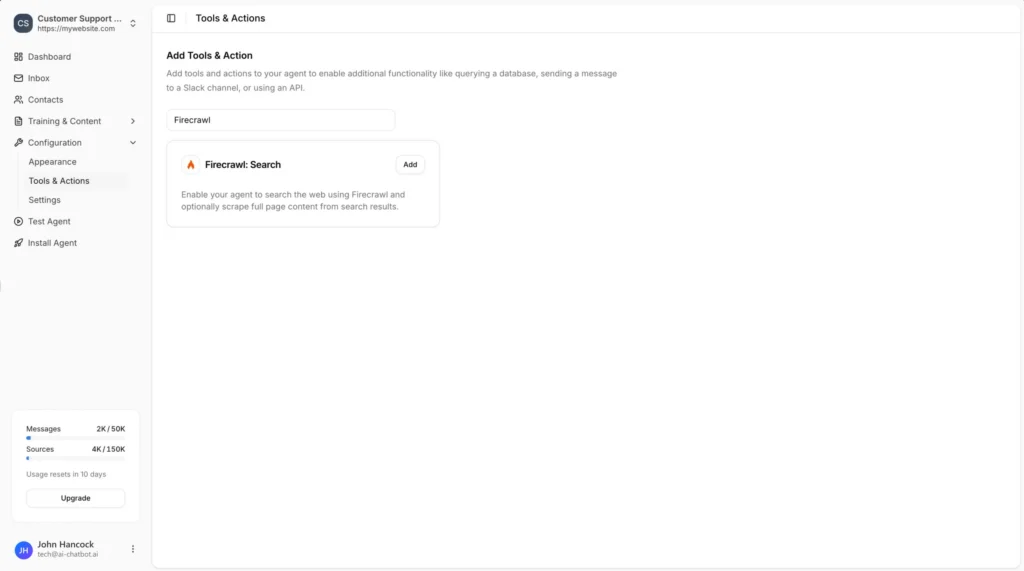
In your chatbot dashboard, click Configuration in the sidebar, then select Tools & Actions.
Click the + Add Action button.
Type “Firecrawl” in the search field to filter the available actions.
4
Select Firecrawl: Search
Click Add next to Firecrawl: Search.
1
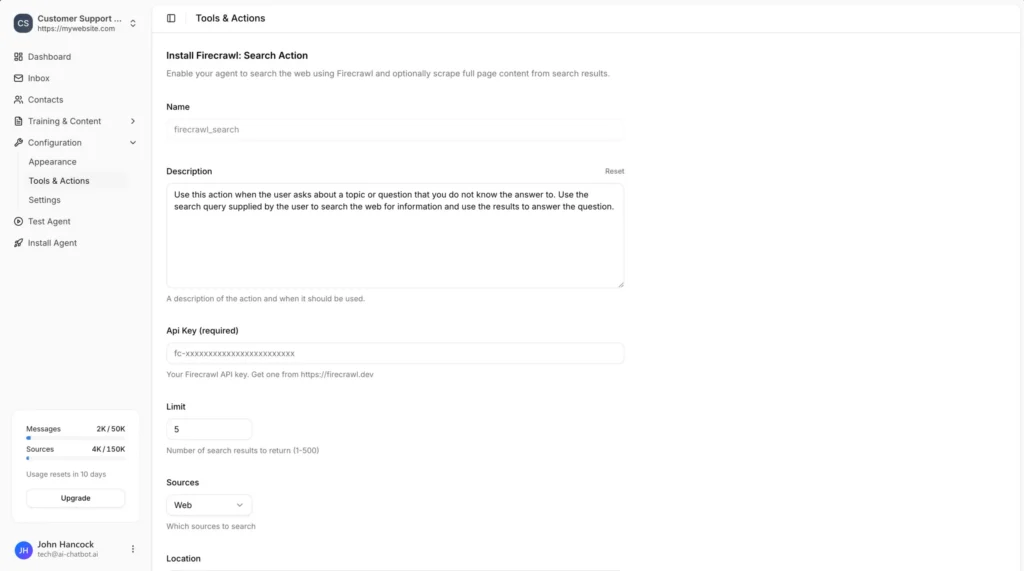
Set Name and Description
Enter your Firecrawl API key. Get one from https://firecrawl.dev.
- Limit: Number of search results to return (1-500). Default is 5.
- Sources: Select which sources to search (e.g., “Web”).
- Location: Geographic location for search results (e.g., “Germany”, “San Francisco, California, United States”). Leave blank for global search.
4
Enable Scrape Content (Optional)
Toggle Scrape Content to scrape full page content from search results. This provides more detailed information but uses more Firecrawl credits.
Click the Add Action button to save and enable the action.
Firecrawl vs Brave Search
Choose Brave for simple web searches without additional configuration. Choose Firecrawl when you need more control over search results, location targeting, or full page content scraping.
Join over 1000+ businesses, websites and startups automating their customer service and other tasks with a custom trained AI agent.